We've prepared this guide to help you minimize the risk of account bans during your first login. In practice, most accounts get banned not because of problems on the store's or supplier's side, but because of mistakes made when setting up the working environment.
In this article, we'll explain in detail how to prepare an antidetect browser and proxies, correctly interpret the account data provided, log in without triggering unnecessary antifraud checks, and complete the initial aging period before starting work.
Preparing your working environment: antidetect browser and proxies
You shouldn't open a purchased account in a regular browser on your computer. Even if you enable incognito mode or create a separate Chrome user, the platform will still associate the new login with your hardware.
This is because social networks track users not only by IP address but also by their device fingerprint: graphics card parameters through Canvas and WebGL, audio settings and system fonts. If accounts have previously been banned on your computer, the system will immediately match this data with previous bans and send the new account to a checkpoint.
To isolate accounts from one another, you need antidetect browsers. They create a separate environment for each profile, with its own cookies, cache and unique device fingerprint.
However, you must follow one simple rule: each purchased account should have exactly one separate profile in the antidetect browser. You cannot log into multiple accounts from the same browser tab.
If you're not ready to purchase a paid software subscription right away, you can start with services that offer free plans: Dolphin{anty} (offers 10 free profiles), AdsPower or Incogniton.
When your workload grows and you need dozens of profiles for regular use, you can switch to paid solutions such as Octo Browser or Undetectable.
The second essential step — is configuring proxies. You shouldn't log into purchased accounts using your home internet connection, and you need to choose your proxy connection carefully.
Public free proxies, shared proxies and any IPv6 proxies are strictly prohibited. IPv6 connections constantly experience real DNS leaks, while public and shared proxy pools have long been blacklisted by security systems.
The situation with VPNs is less straightforward: in some rare cases, they may work on simple websites, but VPNs are definitely unsuitable for Facebook, Google, Instagram, Discord and similar platforms because of their advanced antifraud systems. These systems can easily detect the datacenter IP addresses used by such services and immediately ban the profile.
Regular datacenter IPv4 addresses are also not recommended. They should only be used if they are genuinely high-quality private addresses, but finding such addresses on the market is difficult nowadays.
For reliable operation, you should use private mobile or residential IPv4 proxies. Mobile proxies connect to the internet through mobile operator IP pools. Since hundreds of ordinary smartphone users share the same cell tower, social networks cannot block such an address entirely. Residential proxies are associated with real home internet providers and are suitable when an account needs a permanent static IP.
When configuring a profile in an antidetect browser, you must match the system settings to the country of the purchased account. For example, if the product description specifies Poland, you should purchase proxies strictly for the Polish GEO.
You also need to set the Polish time zone and interface language in the antidetect browser profile. If you log into a Polish account using a Polish IP but leave the browser configured with Moscow time and Russian language, the security system will immediately detect the mismatch and send the profile for verification.
Receiving your purchase: warranty, video recording and data verification
The warranty period begins immediately after payment and receipt of the file containing the accounts. According to the store's rules, you have no more than 60 minutes to check the product, unless an individual verification period is specified in the detailed product description on the website.
However, video recording is not required for every product: you only need to record the process if the supplier explicitly states this requirement in the description or the product has the corresponding attribute on the website.
You cannot postpone the verification itself: if you open the accounts several hours later or the following day, support will not accept the video recording because the timestamps do not match. You can contact support immediately after recording the video, but it must clearly show that the login attempt took place within the specified warranty window.
If video recording is mandatory for the product, you must record the entire process from payment to the first login attempt to ensure you can receive a replacement if a problem occurs. The screen recording must be continuous: it must clearly show the payment itself, the page displaying the delivered account data and the subsequent attempt to log into the account.
Account data from the text file must be copied exclusively through the context menu — by right-clicking the mouse. Support does not accept videos where text was copied using keyboard shortcuts such as Ctrl+C and Ctrl+V, because it's impossible to visually confirm which exact line was copied from the order.
Login errors often occur because of the format of the delivered file. Account credentials are usually provided in a single line with fields separated by colons:
login:password:email:email_password:2FA.
These fields are often confused through carelessness: for example, someone enters the email password into the social network's login field or pastes the two-factor authentication secret key instead of the account password. To avoid login errors, you should separate the line in advance and copy each parameter into its corresponding field, without colons or extra spaces at the beginning or end.
Before entering the login and password in the antidetect browser, it's worth checking whether the account is valid without actually logging into the profile. For example, Facebook account data always includes a numerical user ID.
Simply open a link such as: [facebook.com/account_id](https://facebook.com/id_аккаунта) in a regular browser. If the page opens, the account is active.
If the message «This content isn't available right now» appears instead of the profile, the account was banned before purchase. You can immediately contact the store's support team with this video evidence to request a replacement.
Authentication: how to log in correctly using cookies, credentials and 2FA
Depending on what is included with the purchased account, you can log into the profile either by importing cookie files or by entering the login, password and two-factor authentication code. The exact login method is always specified in the product description, so you shouldn't experiment: if the account is prepared for cookie-based login, attempting to enter the login and password directly often results in a session reset and a security check.
Logging in with cookies
Cookie-based authentication is considered the most reliable method for the first login. In this case, you open an existing session, so the website doesn't need to verify the password again or request additional confirmation.
The Netscape format is rarely encountered nowadays; most cookies are provided in JSON or Base64-encoded JSON format.
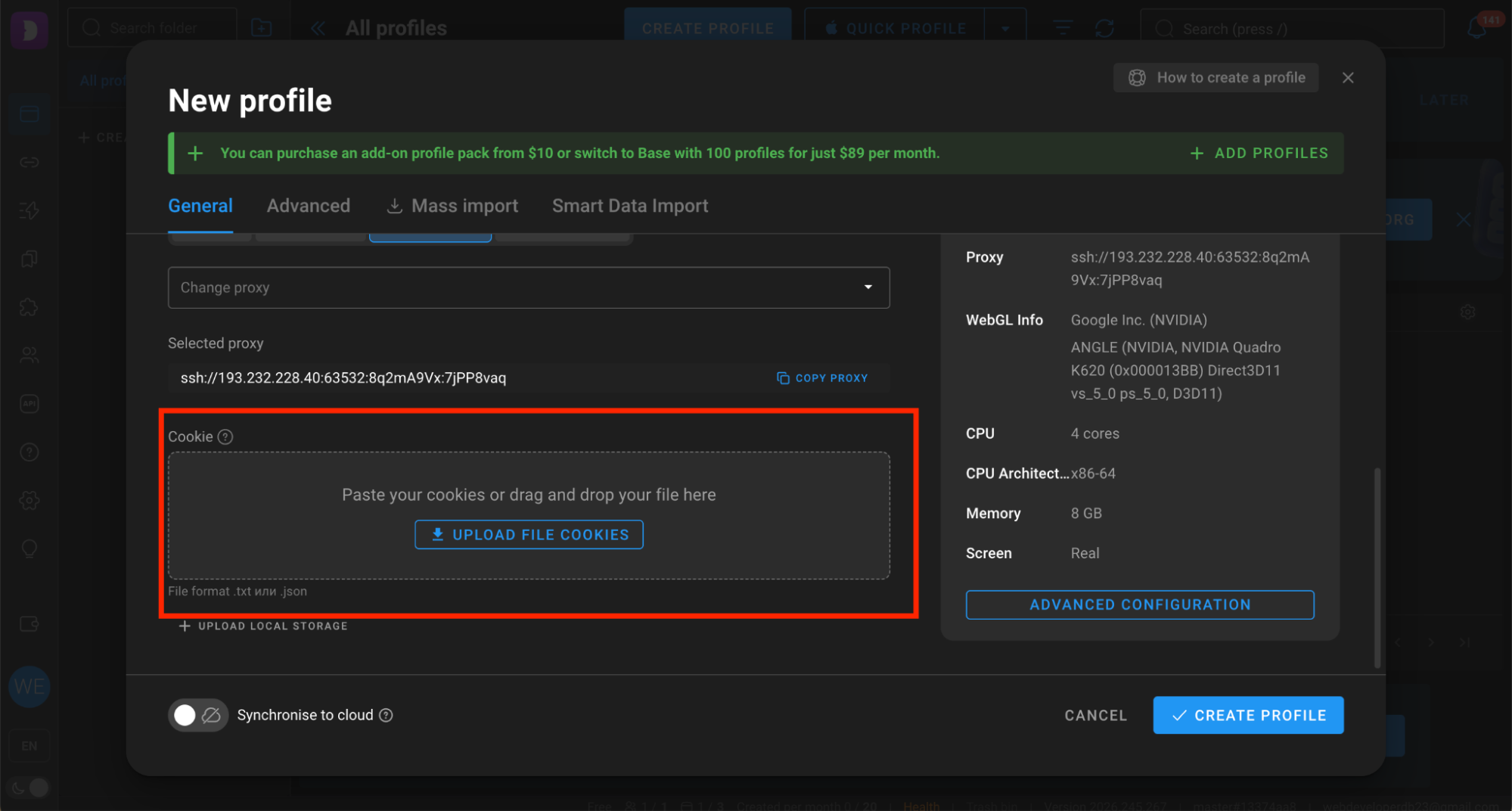
Buyers often don't understand what cookies look like and copy the entire text file into the antidetect browser — including the login, password and email address. Naturally, the antidetect browser cannot read such a file and returns an error.
You should paste only the cookies themselves. JSON cookies usually look like this: [{ various data inside }] — copy everything, including the brackets. If you can't figure out exactly where the cookies are located in the file, or the antidetect browser reports a format error, use the converter on our website. The tool will automatically find the cookies in the text and convert them into the required format.
To apply the file, you need to import the data into the antidetect browser profile before launching the browser. Most antidetect browsers have a dedicated field for this when creating or editing a profile: simply open the cookie file, copy the clean array without extra lines and paste it into the import window.
When working with cookies, it's important to ensure that the system data matches:
-
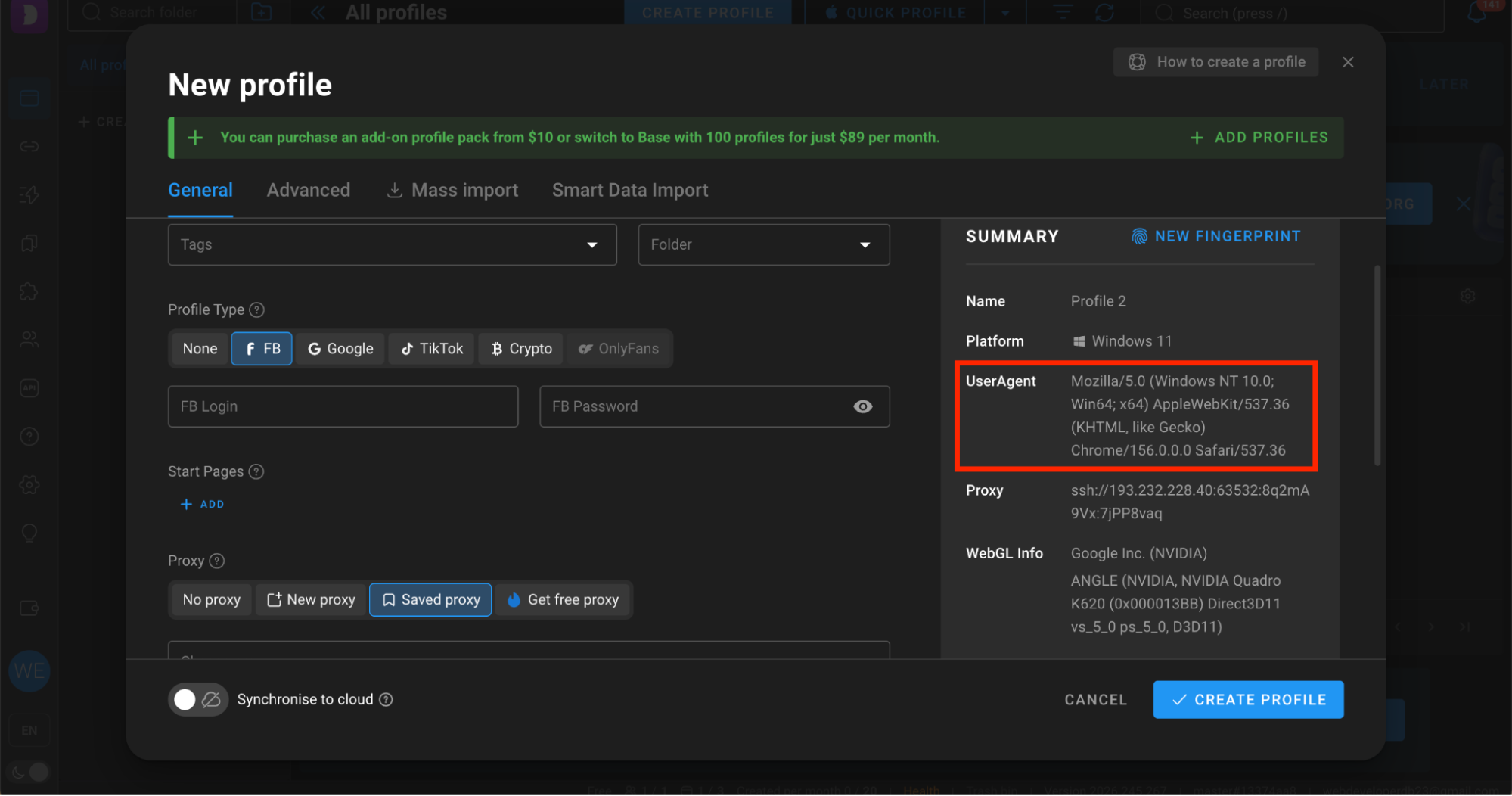
User-Agent. The browser version and operating system in the antidetect profile must match the system on which the cookies were collected. If the session was exported from Windows but the profile is launched under macOS in the antidetect browser, the social network will most likely reset the session or require the password to be entered again.
-
Checking authentication. After importing the cookies, launch the profile and immediately open the homepage of the relevant platform. If the cookies are valid, you'll be taken directly to your account without a login and password prompt.
If the website still asks for a login and password, it doesn't necessarily mean the account is dead. The cookies may be fully functional, but the session failed to load for one of two reasons: the data was imported incorrectly, or the particular antidetect browser or extension is incompatible with the format.
This problem often occurs, for example, in Dolphin{anty}. In this case, you should double-check that the cookies were pasted correctly or convert them into another format.
Logging in with a username, password and 2FA code
If the product description specifies standard credential-based login, authentication is performed manually through the platform's login page.
When two-factor authentication is enabled on the account, the website will request a one-time six-digit code after you enter the login and password. You don't need a phone number for this: the store provides a 2FA secret key in the order line, consisting of letters and numbers (for example, JBSW Y3DP EHPK 3PXP JBSW Y3DP EHPK 3PXP or t5ouwl25lxmg7ld35jxfrqoqbhjtajdl).
To generate a login code:
-
Copy the secret key from the delivered line (without colons or neighboring parameters).
-
Paste the key into the service's input field and click the generate button.
-
The service will generate a six-digit code that refreshes every 30 seconds. Copy this code and paste it into the confirmation form on the social network's website.
Logging into the linked email account
Sometimes, when logging in from a new device, the social network's security system sends a verification code to the linked email address. The email account credentials usually appear next in the order line, immediately after the account password.
The main rule when checking email — is to open it strictly within the same antidetect browser profile where the account itself is running.
Email services such as Outlook, Hotmail and Firstmail also closely monitor changes in IP addresses. If you log into the mailbox using your regular browser and home internet connection, the email account may be blocked for a suspicious login, making it impossible to confirm authentication on the social network.
Manual login vs. automation tools and software
You should also pay special attention to third-party software. Buyers often purchase batches of profiles and immediately load them into all-in-one tools for messaging, automated campaign launches or third-party scripts.
You shouldn't do this with newly purchased accounts. Most automation tools work through direct requests to the platform's API without delays and often use outdated browser versions. Launching a fresh account through such software is highly likely to result in a ban.
The warranty only covers standard manual login through a browser, unless otherwise stated in the product description. If a purchased account opens without problems when accessed manually through an antidetect browser but returns errors in your script or software, the issue is not covered by the warranty, and a replacement will be refused.
If the platform allows account validity to be checked without logging in, it's better to check the batch first using a checker or manually by login. In all other cases, accounts must be checked manually in a browser and transferred to working software only after a successful login.
The first 24 hours: aging and safely changing account details
Successfully logging into an account is only half the battle. The most common mistake after the first login is immediately becoming highly active on the profile: linking bank cards, creating advertising accounts or trying to change all passwords and contact details within the first minute. Antifraud systems interpret any sudden action from a new IP address and unfamiliar device as a possible hacking attempt.
To minimize the risk of a ban, it's useful to prepare the antidetect browser profile itself before logging into the social network for the first time. If you open a clean profile and immediately visit the platform's website, the security system will detect a complete absence of browsing history.
In real life, users don't behave this way: before logging into social networks, their browsers already contain cookies from other websites, search engines and online stores. That's why, before authentication, it's worth running Cookie Robot on 10–15 popular websites in the target GEO to build a natural browsing history.
Passive session and initial aging
After the first login, you must give the account time to age. This is particularly relevant for profiles you plan to maintain long-term or use for advertising, such as Facebook, Instagram, TikTok, Threads and other popular social networks.
During the first session, you shouldn't be highly active: don't leave dozens of likes, join groups or send messages. It's enough to open the news feed, scroll through it slowly for a couple of minutes, open one or two posts and close the profile.
After that, the account should be left untouched for at least 3–5 hours, preferably for a full day. During this time, the antifraud system will register the new device and stop treating the login as suspicious, so subsequent actions won't trigger the platform's security systems.
Changing account details and the 12-hour rule
After purchase, you must change the account details to your own within 12 hours to protect the account from access by third parties. However, if you try to change the password and unlink the original email immediately after the first login, the social network is highly likely to interpret this as a hacking attempt and trigger a security check.
To do this safely without triggering a ban, you should separate these actions over time:
-
Change account details only after the initial aging period of several hours, once the session has become established in the browser.
-
First, change only the profile password and log out all previous sessions without touching the linked email or two-factor authentication settings. Also change the password of the linked email account if one is included.
-
Additional details, such as a recovery email or new phone number, should be changed no earlier than after a full day of gradual activity, once the platform has fully adapted to your device.
What you must not do during the first 24 hours
You need to be careful with a newly purchased account during the first 24 hours. During this period, the following actions are strictly prohibited:
-
Linking bank cards and attempting to launch advertising campaigns;
-
Launching mass messaging campaigns, adding friends in bulk or commenting on other people's posts;
-
Changing the proxy IP address to another city or country;
-
Opening security settings and forcibly terminating all other active sessions.
Each of these actions during the first day attracts unnecessary attention from security algorithms and may trigger a checkpoint from which the account can no longer be recovered.
Specifics of popular platforms: hidden security triggers
Every platform has its own antifraud configuration. While session management and the client are critically important for Telegram, Facebook places particular emphasis on advertising account connections and changes in hardware. To avoid bans, you need to consider the technical specifics of each platform before logging into a profile.
Meta's antifraud system relies on behavioral factors and profile history, making it particularly sensitive to changes in the working environment. The next steps depend on the type of product purchased:
Expensive farmed accounts and king accounts (with PZRD, FP and BM). These profiles are already prepared for launching campaigns. There's no point warming them up by browsing the feed and accumulating likes, since the seller has already completed all the basic activities. The main task is to let the session become established on the new hardware and proxy.
After importing the cookies, the profile should be left untouched for 3–6 hours or overnight. After this aging period, you can go directly to Ads Manager, link your setups and add payment methods. The main thing is to avoid sudden actions during the first few minutes after the initial login.
Auto-registered accounts for linking to king accounts. Auto-registered accounts are usually purchased not for launching ads directly, but to connect their advertising accounts to a main trusted profile (a king or mother account) and run ads through it. To prevent the account from triggering verification during linking, follow this sequence:
-
Import the cookies or log in using the credentials in a separate antidetect browser profile with a high-quality mobile proxy matching the required GEO.
-
Leave the profile untouched for at least 3–5 hours so the session becomes established with the new IP address and browser fingerprint.
-
Transfer access rights to the auto-registered account's advertising account to the king account through an invitation or by adding it as a friend. Do this gradually, without sending dozens of requests in a row.
-
Perform all major advertising activities (linking payment methods, launching campaigns and scaling) within the king account, without logging into the auto-registered account again unless necessary.
Checkpoints during the first login. When opening the page, the platform may request a date of birth, a 2FA code or a code from the linked email. All this information is provided in the order line, so you simply enter it into the corresponding fields.
It's impossible to pass a document or selfie verification request on a newly purchased profile without genuine photos of the owner. However, getting a replacement in this situation is difficult: suppliers almost never replace accounts if a checkpoint appears during login, especially during another wave of Facebook restrictions.
Facebook itself doesn't display the date and time when the selfie checkpoint was triggered, so it's impossible to prove exactly whether the problem existed in the account from the beginning or whether the antifraud system didn't like your setup.
That's why any batch, for example, 10 accounts, must be logged into strictly one at a time. If the first profile is immediately blocked, don't continue opening the others.
Take a break, change the fingerprint settings and use different proxies: even a high price for private proxies doesn't guarantee that their IP pool is clean. Only after completely rebuilding the setup should you try logging into the second account.
Google and Google Ads
Google's antifraud system evaluates the browser's digital fingerprint, proxy cleanliness and activity history across the company's services. The workflow depends on the product category: a warmed-up email account for creating advertising campaigns or a ready-made trusted Google Ads account with ad spend history and verification.
Warmed-up farmed accounts for creating Google Ads accounts. These profiles are purchased to launch advertising independently from scratch. They already have at least 7 days of manual farming, incoming Gmail messages, logins to third-party websites and enabled 2FA. You shouldn't create an advertising account in the very first minute. The correct sequence is as follows:
-
Import cookies into the antidetect browser profile or accept a ready-made session through profile transfer (for example, in AdsPower). Proxies must strictly match the account's country: a US account needs a clean residential or mobile IP from the corresponding region.
-
Leave the profile to age for at least 12–24 hours. During this time, the session becomes associated with the browser fingerprint, and the system stops treating the login as suspicious.
-
After the aging period, open the Google Ads website and create an advertising account. Adding a payment method and creating campaigns should be done in stages, starting with small daily budgets for a white-hat website to gradually build trust in the payment method.
Ready-made Google Ads accounts (with ad spend, history and verification). These are expensive profiles that have already passed advertiser or organization verification, have an age of several months or even years (specifically, the age of the email account itself), and have completed their first billing cycle (for example, an initial $10 ad spend). Here, it's critically important to preserve the working parameters prepared by the seller:
-
If the account comes with its original proxy, the initial launch and all subsequent work should be performed exclusively through that proxy.
-
Changing contact details, the owner's name, company information or unlinking the recovery email during the first few days is strictly prohibited. Sudden changes to security information on an account with active billing may result in a ban for Circumventing Systems.
-
You should add your own payment method and launch ads only after 5–6 hours of passive aging. Budgets should be scaled gradually rather than setting limits of hundreds of dollars from the start, to avoid triggering a checkpoint for Suspicious Payment Activity.
Passing security checks during login. When logging in, Google detects changes in devices and requests identity verification:
-
Recovery email request. In the verification form, select «Confirm your recovery email address» and enter the email address from the order line. You don't need to log into the recovery mailbox itself: the platform only requests the matching email address as text to verify access rights.
-
Two-factor authentication code. Paste the secret key from the text file into the 2FA code generator to obtain a six-digit verification code.
Google account warranty conditions are currently strict: only accounts with Disabled status (a complete ban), incorrect credentials in the order, or cases where the service requires confirmation from someone else's device or a code sent to the linked phone number qualify for replacement.
If an account has been inactive for a long time, Google may simply ask you to link a phone number. The profile is still fully functional, so this isn't considered a defective product.
The service has also started requesting video selfies or QR-code login during authentication. If the antidetect browser and proxy settings are correct but Google still requires this verification, try logging in through the Gmail app on a regular phone, cloud phone or emulator. Logging in from a mobile device usually works without problems.
Instagram and TikTok
The first-login procedure for Instagram and TikTok doesn't change depending on the product type. Whether you're buying a cheap auto-registered account, a manually self-registered account, an aged profile or an old established account with followers — the security rules are exactly the same.
Both platforms are designed primarily for smartphones, so their antifraud systems focus mainly on behavior within the mobile app. It's not recommended to use these accounts through the web version in a regular antidetect browser on a computer: the browser version often limits reach, restricts actions and may result in shadow bans or checkpoints when publishing content.
You should log into purchased profiles using one of two methods:
-
Physical smartphone. The phone must be reset to factory settings, the local SIM card removed, location services disabled and the system language set to match the account's country. The network connection must use a private mobile or residential proxy matching the required GEO.
-
Cloud phone. For working with larger volumes, it's better to use cloud mobile phone solutions, which are now integrated into some antidetect browsers on the market. They run the profile in a real mobile operating system environment and provide the app with original smartphone parameters.
After the first login, you must give the profile several hours of aging. Don't immediately change the username, password or profile picture, or mass-unfollow previously followed accounts.
It's enough to open the feed, view a couple of posts or recommended videos and close the app. Any sudden changes to the password, linked accounts or profile appearance immediately after logging in from a new smartphone may trigger a request for verification by phone number or email.
Telegram
The store sells Telegram accounts in two formats: Tdata and Session+Json. The choice depends on how you plan to use the profile: Tdata is intended for manual work through the Telegram Portable desktop client on a computer, while Session+Json is used for importing accounts into automation software and scripts.
Working with Tdata (Telegram Desktop):
Before logging into a purchased account, you need to configure a proxy. If you access the profile directly through your home internet connection, Telegram will detect a mismatch between the phone number's country and your real IP address, which may cause the session to reset or trigger a spam restriction.
For phone numbers from the US, Indonesia or Europe, you should use a private mobile or residential SOCKS5 proxy matching the phone number's country.
Steps for a safe login:
-
Download the latest version of Telegram Portable from the official website and extract it into a separate folder. The client version must be up to date; otherwise, the program may be unable to read the new session and will display the phone number login screen.
-
Launch Telegram.exe before transferring the tdata folder from the archive. On the startup screen, click the connection icon (the shield in the corner of the window), select SOCKS5, enter the proxy credentials and wait for the connection to be established.
-
Close the client completely.
-
Copy the provided tdata folder from the order archive into the main Telegram folder, next to the Telegram.exe file.
-
Open Telegram.exe again. The program will immediately launch the existing profile through the configured proxy without requesting an SMS code.
Working with Session+Json:
This format is intended for importing into programs and scripts. The .json file contains device parameters, while the .session file handles authentication. When importing into software, proxy credentials must be entered in the program's settings, with the GEO strictly matching the country of the provided phone number.
Security rules and aging during the first few days:
-
Changing account details and the cloud password (2FA). Telegram doesn't impose strict restrictions on changing account details during the first day, and its algorithms don't ban accounts for such actions. On the contrary, many suppliers explicitly recommend setting or changing 2FA immediately, as well as linking your own email address to securely establish control over the profile.
-
Terminating other people's sessions. The list of active sessions may show previous connections made by the account registrar. You shouldn't terminate them during the first day: abruptly disconnecting devices from a new IP address is highly likely to cause Telegram to terminate your own session instead.
-
Activity restrictions. The account needs a 24-hour aging period. Don't initiate conversations with unfamiliar contacts, send links in bulk or subscribe to large numbers of channels. Sudden activity from a new IP address will immediately trigger a spam restriction on the profile.
Self-check summary table and contacting support
Most disputes when purchasing accounts arise from a misunderstanding of where the store's responsibility ends and the buyer's begins. The seller is responsible for the product's quality at the time of delivery, while the buyer is responsible for complying with the technical requirements during authentication.
If the account wasn't working from the beginning, the store will provide a replacement. However, if the profile was banned because of mistakes in configuring the working environment or failure to follow the aging rules, the customer bears full responsibility.
Checklist before submitting a support ticket
Before contacting the store, compare the problem you're experiencing with the table below.
|
Problem symptom |
Possible cause |
Warranty status |
|
Incorrect login or password error on the first login attempt |
Typing mistake when separating the data fields or incorrect credentials in the order |
Covered by warranty (with video evidence) |
|
Selfie or document verification requested immediately after entering credentials |
The profile was flagged for verification before the sale |
Covered by warranty (with video evidence and a properly configured proxy) |
|
Email verification code doesn't arrive, or the mailbox password doesn't work |
Problem with the included email account |
Covered by warranty (with video evidence) |
|
Product contents don't match the description (missing 2FA, FP or required GEO) |
Seller's error when preparing the product |
Covered by warranty (replacement or refund) |
|
Login error in a script or software, but the account opens in an antidetect browser |
Third-party software incompatibility with the platform |
Not covered by warranty (claim rejected) |
|
Account banned after attempting to link a card or launch a campaign |
Violation of aging rules, sudden actions during the first day |
Not covered by warranty (user error) |
|
Checkpoint triggered when logging in through a VPN or home internet connection |
Dirty IP address, violation of the store's basic rules |
Not covered by warranty (claim rejected) |
|
Password changed immediately after login, followed by a security checkpoint |
Platform's security response to sudden changes in account details |
Not covered by warranty (user error) |
When the store provides a replacement
The store provides a replacement with an equivalent product or refunds the amount to the store balance in the following cases:
-
Invalid credentials upon delivery. The login, password or 2FA secret key doesn't work from the beginning, even though the data was copied without spaces or extra characters.
-
Profile deleted or banned before purchase. When opening the direct link to the social media page, the platform reports that the content is unavailable or immediately requests documents during the first login.
-
Product doesn't match its description. The product listing specified particular features (for example, completed PZRD verification, an included Fan Page, a linked Business Manager or a specific email account age), but these features are missing from the delivered profile.
-
Compliance with the verification procedure. The buyer checked the product within the first 60 minutes after payment and recorded a continuous video showing receipt of the account data and the first login attempt.
When replacements and refunds are refused
According to the store's rules, support will refuse a replacement if:
-
Working environment rules were violated. The account was accessed through a VPN, free or shared proxies, datacenter IPv6 addresses or directly through a home internet connection.
-
One browser profile was used for multiple accounts. The buyer opened different accounts in adjacent tabs of the same browser without fingerprint isolation.
-
The warranty period expired. Product verification began after the allotted 60 minutes, or the video recording doesn't show the payment time and first login attempt.
-
Video recording requirements were violated. The video was interrupted, the screen was cropped, or data from the text file was copied using the Ctrl+C keyboard shortcut instead of right-clicking the mouse.
-
The account was banned after user actions. The profile opened successfully without checkpoints but was subsequently banned after adding a payment card, launching advertising, sending mass messages or immediately changing all contact details.
-
The complaint concerns third-party software. The account opens without errors when accessed manually through a browser but doesn't work in scripts, all-in-one automation tools or automated campaign launch software.
How to submit a support request correctly
If the issue is covered by the warranty, contact the store's support team and provide the following information:
-
The order number and email address provided when making the purchase.
-
A list of the problematic accounts from the file.
-
A brief description of the problem (for example: the email password doesn't work, or document verification is requested during the first login).
-
A link to the verification video uploaded to Google Drive or YouTube (with access enabled via the link).
Requests are reviewed in the order they are received. If all submission requirements are met and the video clearly demonstrates a problem with the delivered product, a replacement will be provided without unnecessary delays.