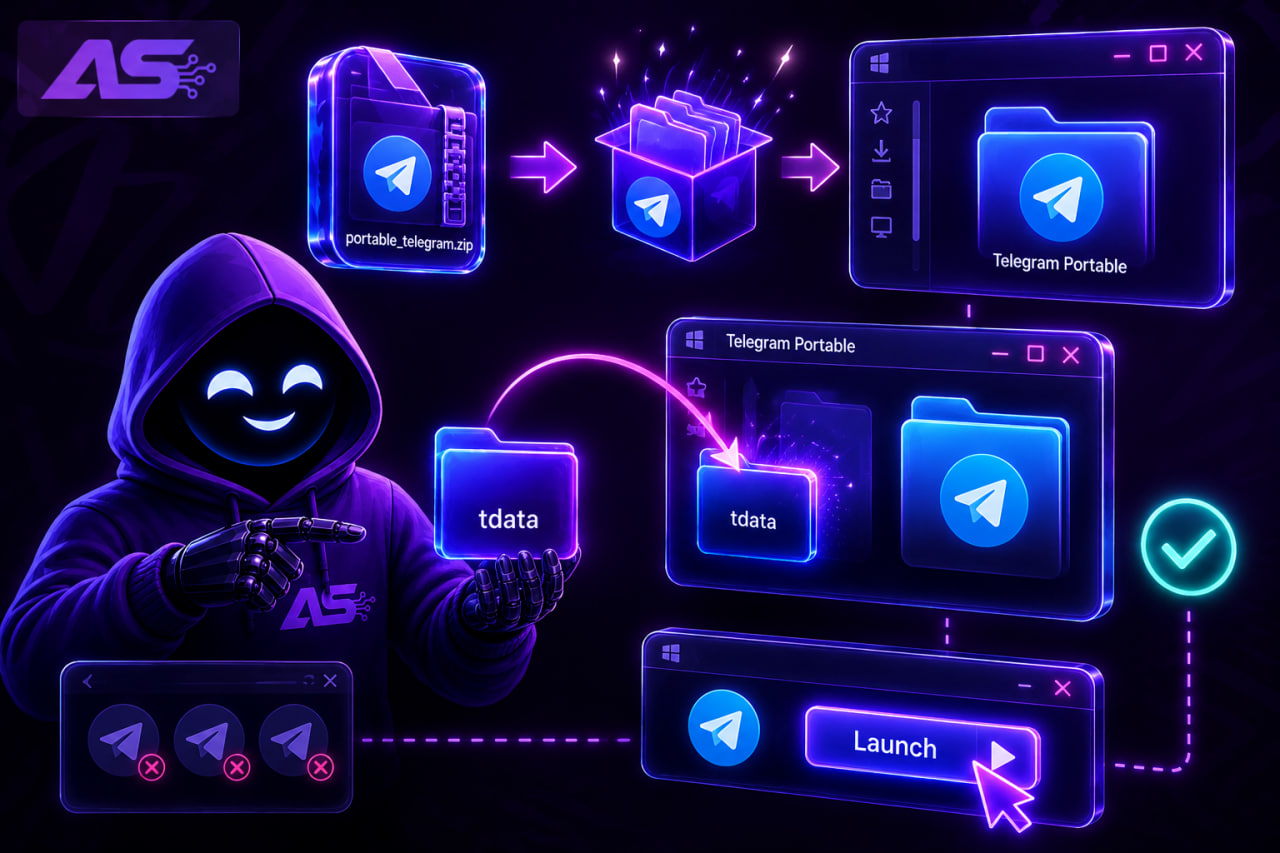



How to speed up Telegram: fixing lags and clearing cache properly
Previously, Telegram was valued for its speed and lightweight feel, but today the messenger has grown a bunch of unnecessary features and ruthlessly consumes phone resources. Constant updates, built-in AI, mini-apps, and automatic background loading of Shorts quickly clog the device's RAM. To restore the messenger's former speed, you need to configure it properly.
Automatic cache clearing
The main reason for constant interface freezes is gigabytes of junk in the cache. By default, Telegram downloads absolutely all media files, stories, and videos from channels that you don't even open.
This issue can be resolved with strict limits. Go to "Settings", open the "Data and Storage" section, and proceed to "Storage Usage". First of all, change the "Keep Media" parameter — instead of forever storage, set the slider to 3 days or a maximum of one week.
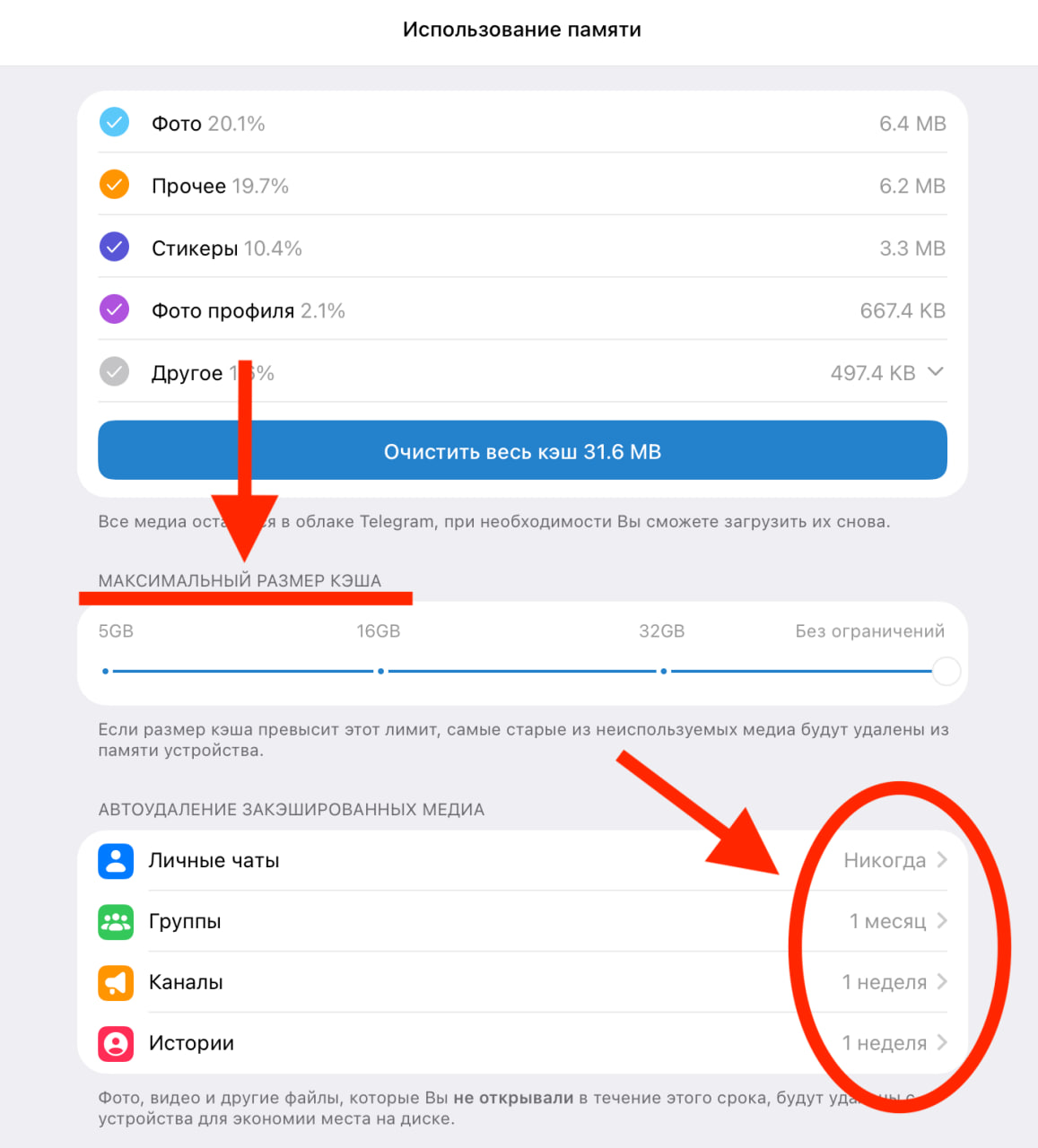
Don't worry about your work sources, documents, or photos in chats: the files won't be deleted for good, they will just be wiped from the phone's local memory, and if necessary, you can redownload them from the cloud at any time. Right there, limit the maximum cache size as well, so that the messenger automatically clears old junk when the limit is reached.
Disabling media auto-download
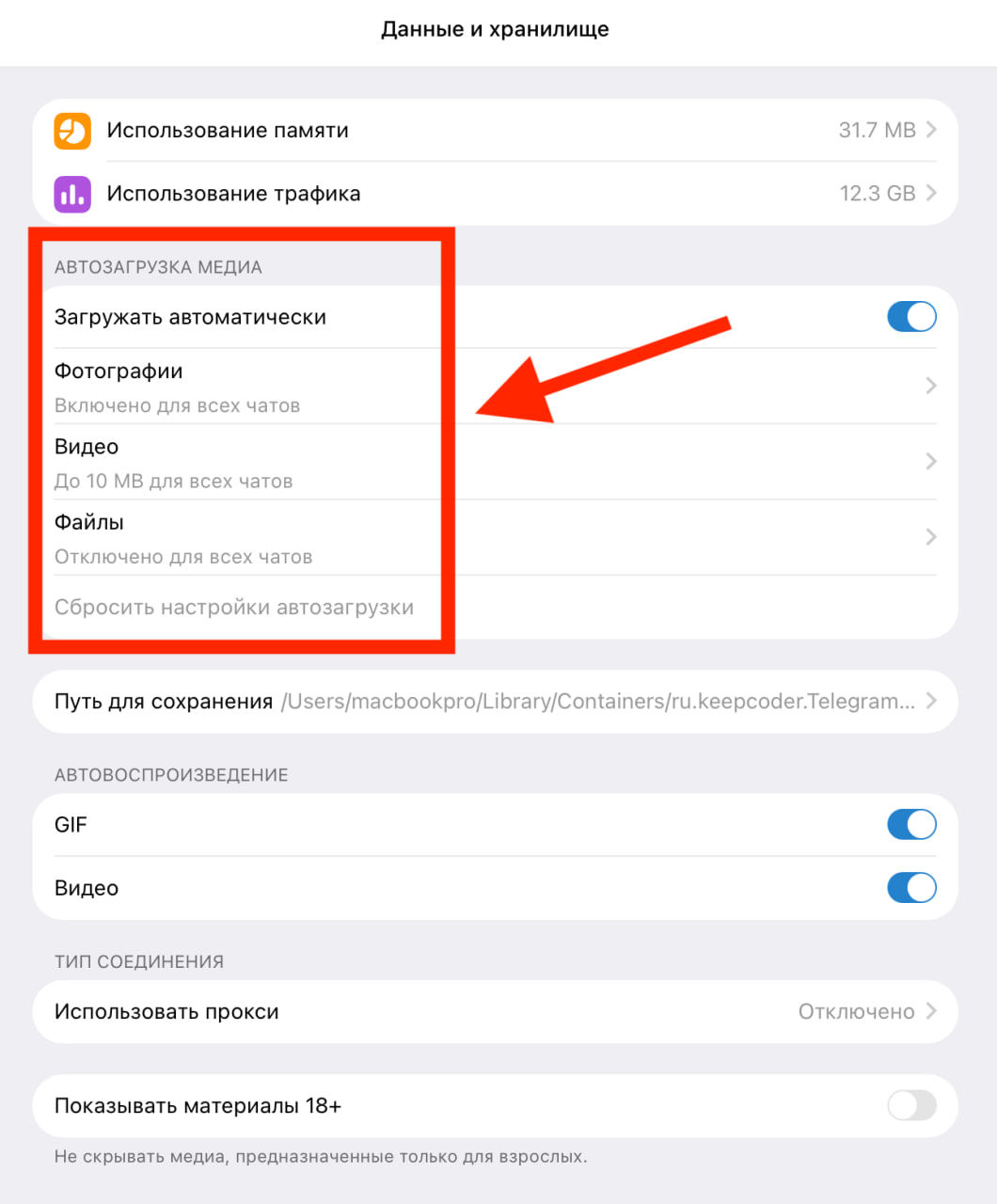
While you scroll your feed or just keep the app open, Telegram downloads gigabytes of content without your knowledge. This not only wastes mobile data but also clogs the device's RAM.
In the same "Data and Storage" menu, find the "Media auto-download" block. Disable automatic downloading via cellular data and Wi-Fi for large videos and heavy files. It's best to set a manual limit — for example, prevent the app from downloading any video larger than 10-15 MB without your click. Now, videos will only start playing when you tap on them yourself.
Power Saving
Animated emoji, Premium stickers, and blurred transparent elements look neat, but they heavily heat up the processor and significantly accelerate battery drain.
To bring back the app's former responsiveness, go to the "Power Saving" section. Activate this mode permanently or manually disable video autoplay, interface animations, GIF autoplay, animated stickers, and blurring.
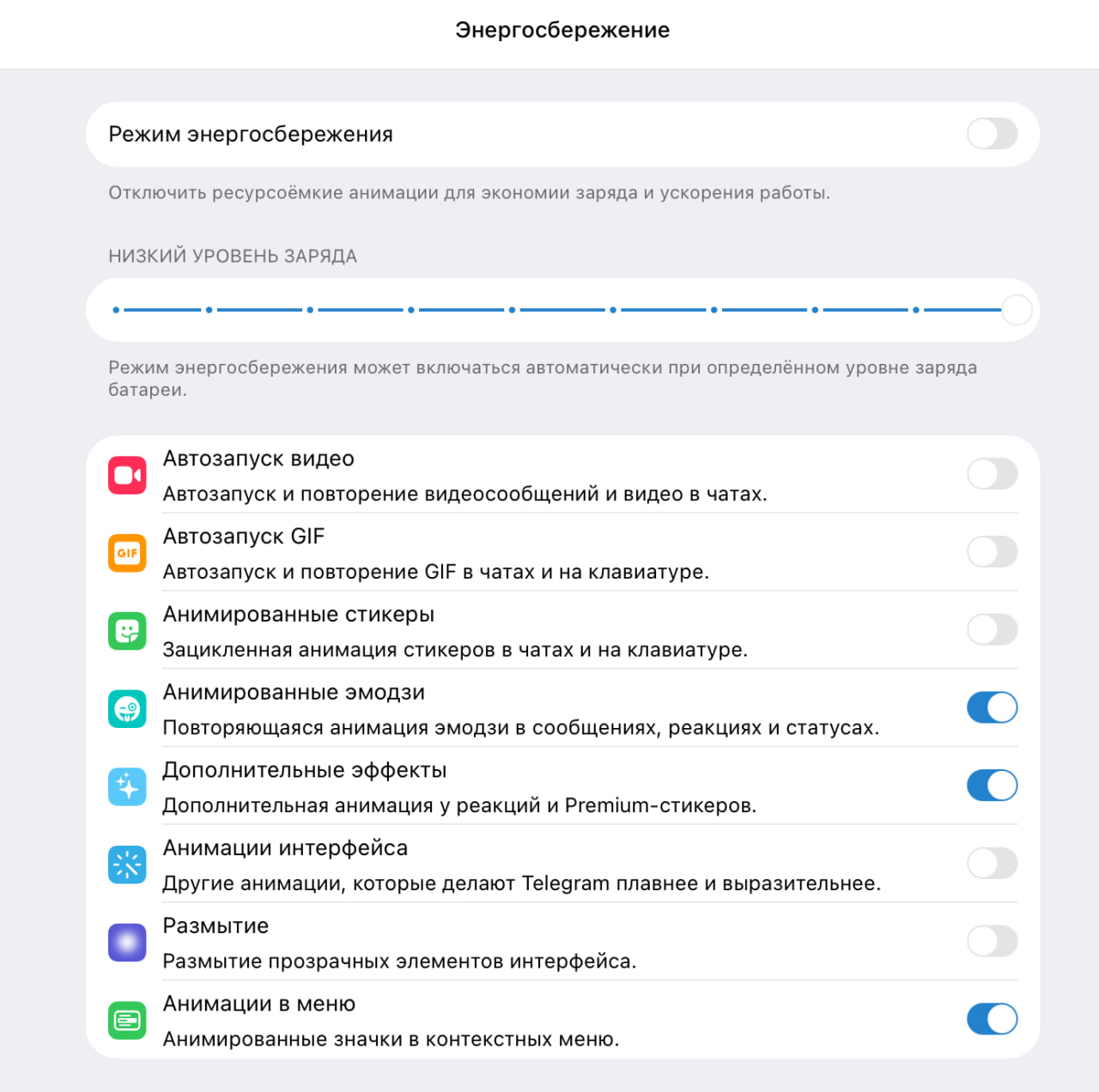
The processor will be instantly relieved, and micro-stutters during scrolling will disappear.
Cleaning up your chats
A massive number of active conversations and subscriptions also heavily slows down the system. When you have hundreds of channels open, Telegram wastes a lot of resources on their constant background updates and counting unread messages.
Clean things up: organize important dialogues into folders, send the rest of the channels to the archive, and make sure to mute their notifications. Archived chats will stop constantly taxing the system and sitting in the device's RAM.
Optimizing these simple parameters will restore the messenger's usual performance speed and get rid of lags on any device.