



To log into a Twitter (X) account using a token (auth_token), you need to install one of the browser extensions.
EditThisCookie | Twitter Token Login | Cookie Editor
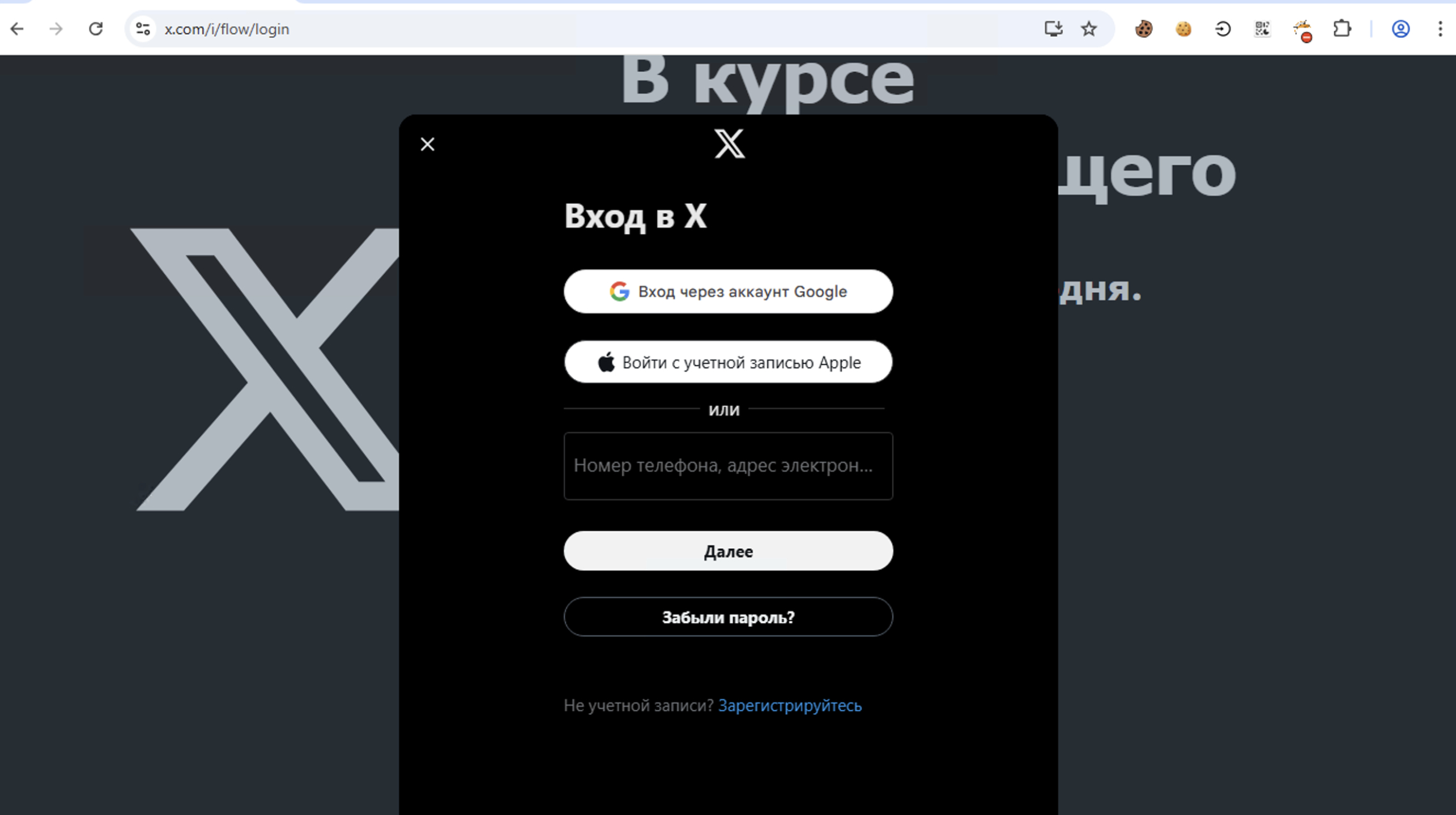
After you have installed the extension (if it wasn't installed previously), go to the x.com (Twitter) website and click log in. A window for entering your details (login) should open; do nothing else at this stage for now.
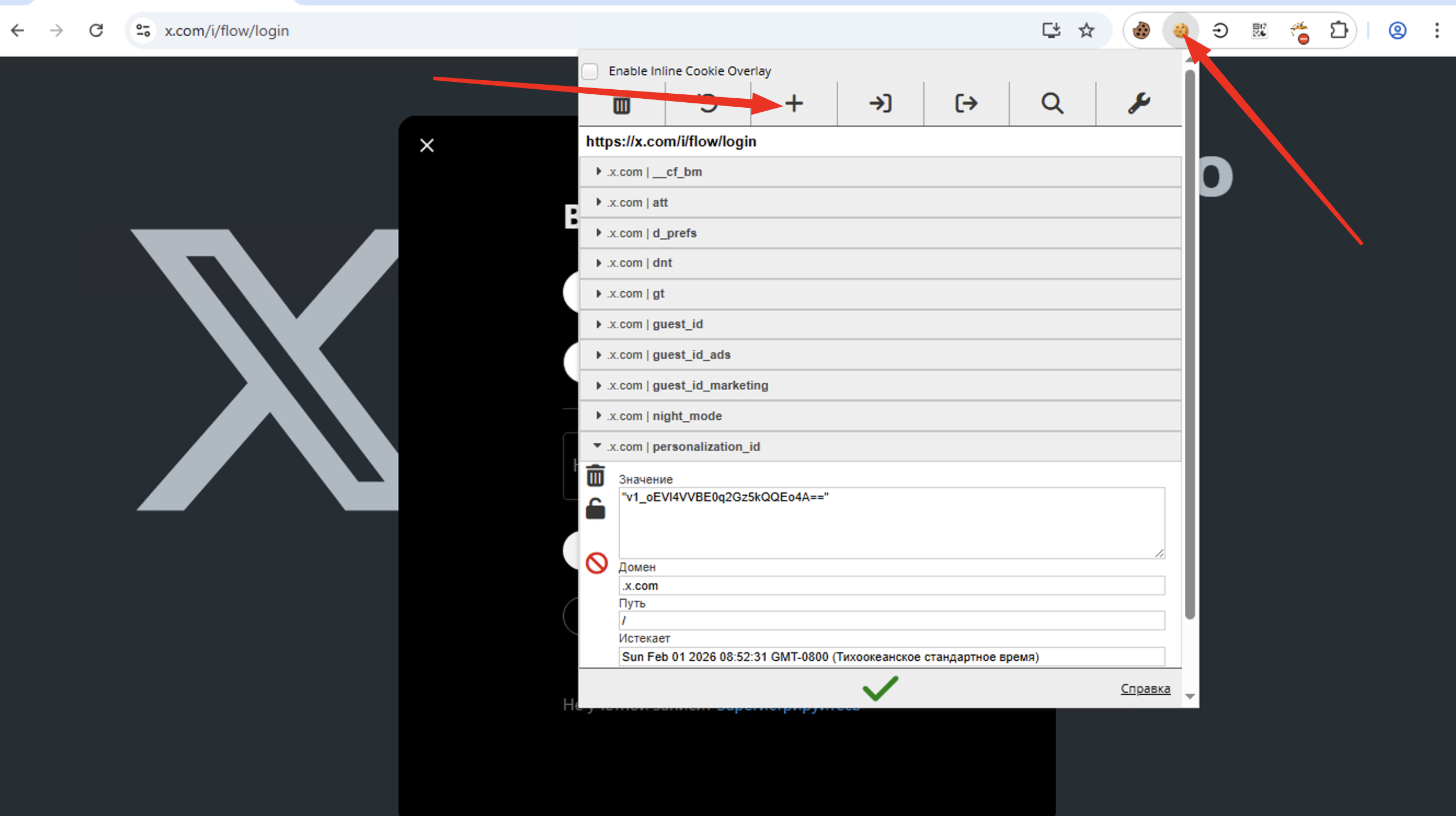
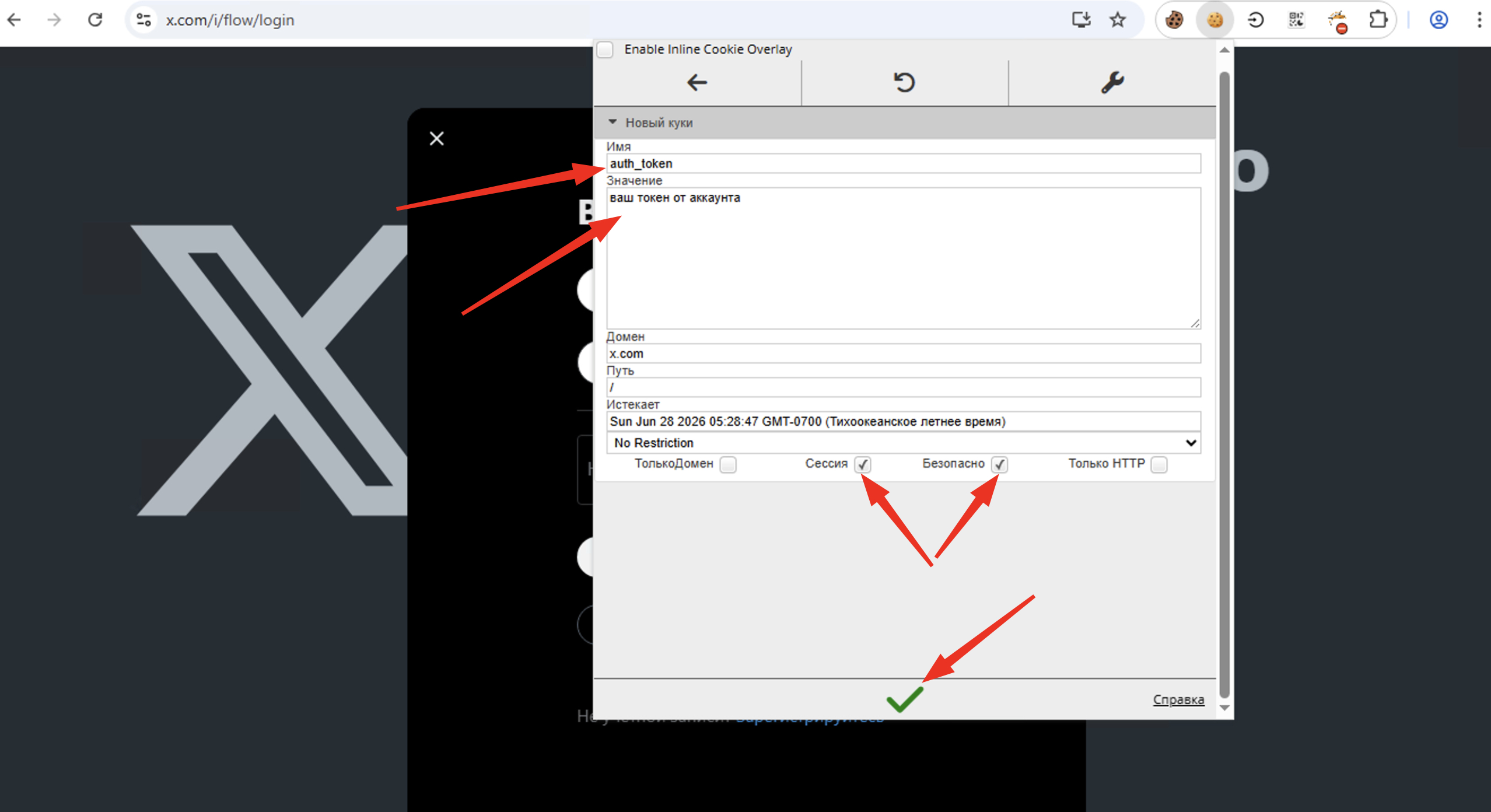
Next, copy the token from the Twitter account and click on the EditThisCookie extension. In the pop-up menu, click on the "+" button and fill in the following details:
- Name field: auth_token
- Value field: your account token
- At the bottom, check the boxes: Session and Secure
Click the checkmark to confirm.
Refresh the page. That's it, you have successfully logged into the Twitter account using a token.
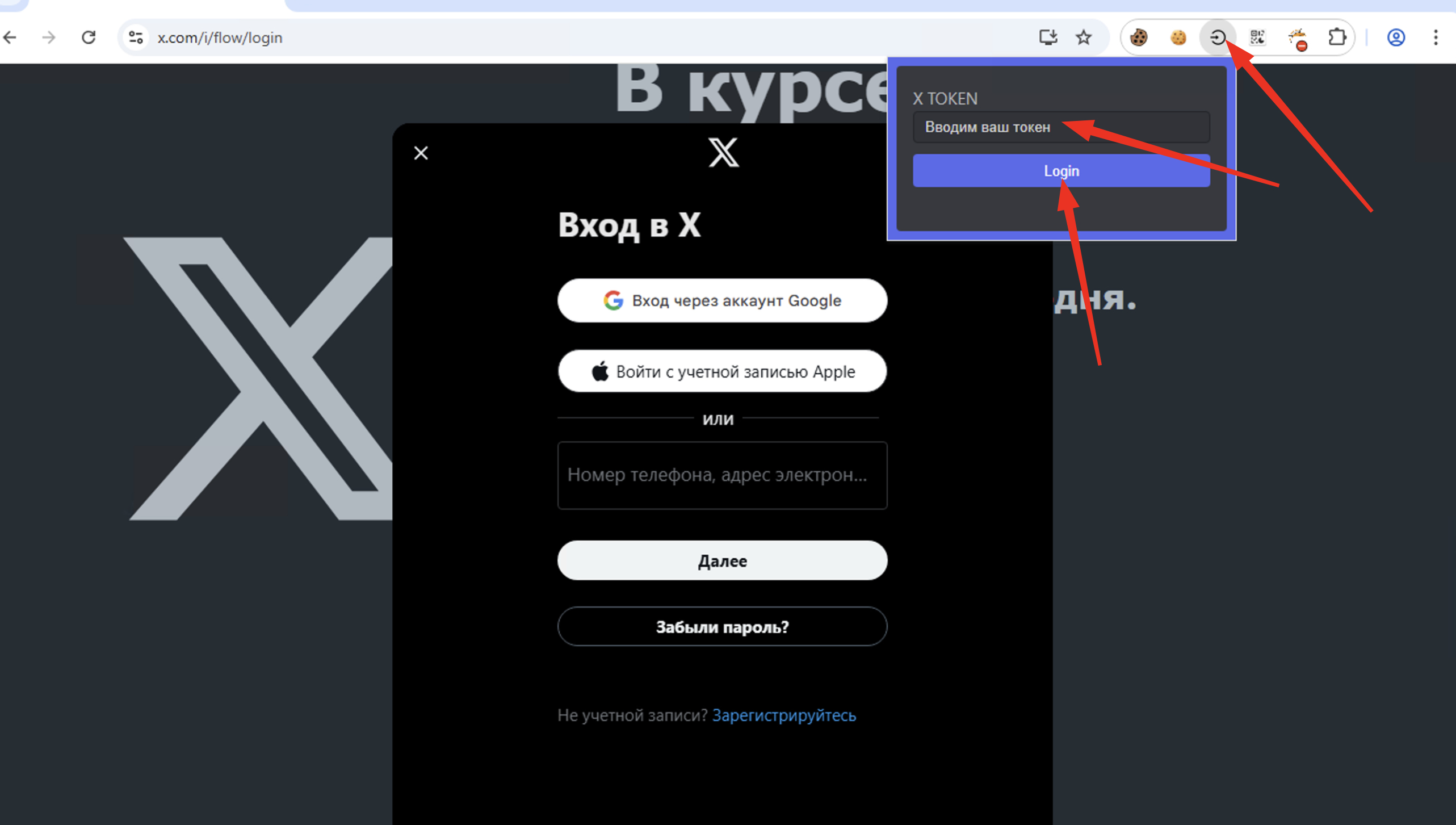
Using the Twitter Token Login extension as an example, it is even simpler.
Just like above, go to the x.com (Twitter) website and click log in. A window for entering your details (login) should open; do nothing else at this stage for now.
Copy the token from the Twitter account and click on the Twitter Token Login extension. In the pop-up menu, there is only one field for the token; enter it into this field, click "Login", and refresh the page.
That's it, you have successfully logged into the Twitter account.