Facebook remains one of the main traffic sources for gambling, nutra, crypto, and adult offers due to its huge volumes and high-quality optimization. However, launching gray-hat offers is becoming more difficult every year: pre-moderation algorithms reject campaigns before impressions even begin, and rejections occur even with relatively mild creatives.
Basic uniqueization through Telegram bots or replacing elements in creatives stopped working a long time ago. The platform's algorithms have learned to read text directly from images, analyze audio, and recognize faces or objects in videos. To push gray-hat approaches through under these conditions, you need to refine the creatives themselves and use Ads Manager settings.
In this article, we take a detailed look at how to bypass moderation in Facebook Ads in 2026: manipulations with Ads Manager settings, methods for masking creatives, and the procedure to follow when ads are rejected.
How Facebook pre-moderation works and what triggers the algorithms
Previously, Facebook moderation worked using simple checklists: a bot checked the ad text against a list of stop words, scanned the image metadata, and checked the link. Now, the initial review is performed by neural networks and computer vision algorithms. The anti-fraud system evaluates the ad as a whole: it analyzes the image, audio, text, and account trust.
During the review, the algorithms pay attention to four key factors:
-
Image and video analysis. OCR algorithms read any text in the creative, even if it is overlaid as a semi-transparent layer. Computer vision can recognize the faces of famous people, medical products, exposed body parts, stacks of cash, and casino slot interfaces.
-
Audio track review. If the voice-over contains stop words, promises of easy money, or casino names, the video will be rejected even if the creative itself contains nothing prohibited.
-
Fan Page and account trust. The higher the Fan Page trust, the more leniently the algorithms treat questionable ads. If you launch gray-hat creatives from a new page, the anti-fraud system will pick on every little detail and will be more likely to ban the ad. Warming up the Fan Page with white-hat posts and a small budget of $5-10 helps it pass the initial reviews more smoothly.
-
White page relevance. The algorithms compare the ad topic with the content of the white page. If the creative is about investments, but the white page contains a gardening or home improvement blog, the anti-fraud system may reject the ad for «Unacceptable Business Practices». The white page should match the creative in meaning while remaining within the rules.
Bypassing moderation through Ads Manager settings
You can pass moderation not only by editing the creatives themselves, but also by using Ads Manager features. The anti-fraud system evaluates the campaign as a whole, so Ads Manager settings can be used to push gray-hat creatives through at the review stage.
Launching ads through multiple languages
The idea behind this method — is to separate ad delivery based on users' interface languages.
In the ad settings, select «Website» as the destination type and open the «Languages» section:
In the Default Language field, select a language that is virtually nonexistent in the target country (for example, Albanian, Basque, or Vietnamese when launching ads in Spain).
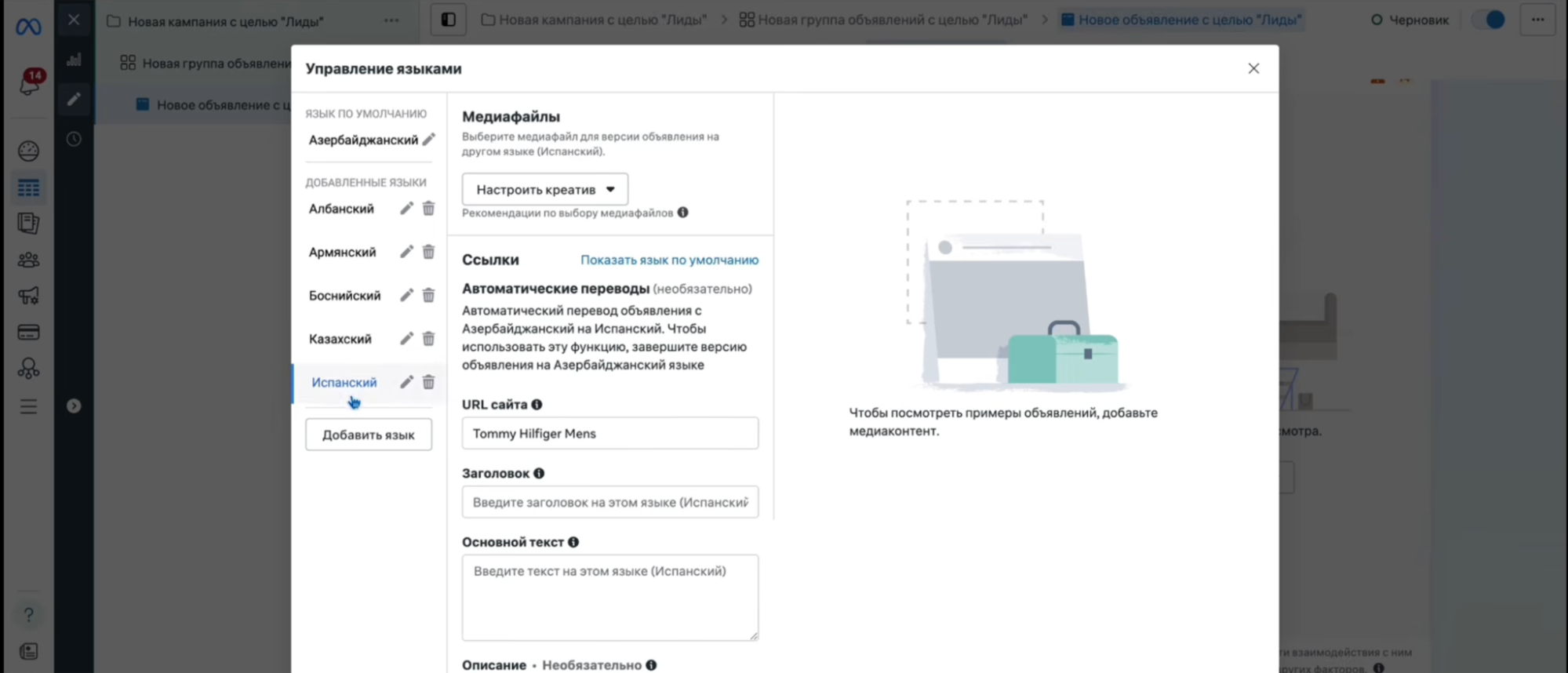
Upload a white-hat image, neutral text, and a link to a product on a marketplace such as Amazon here.
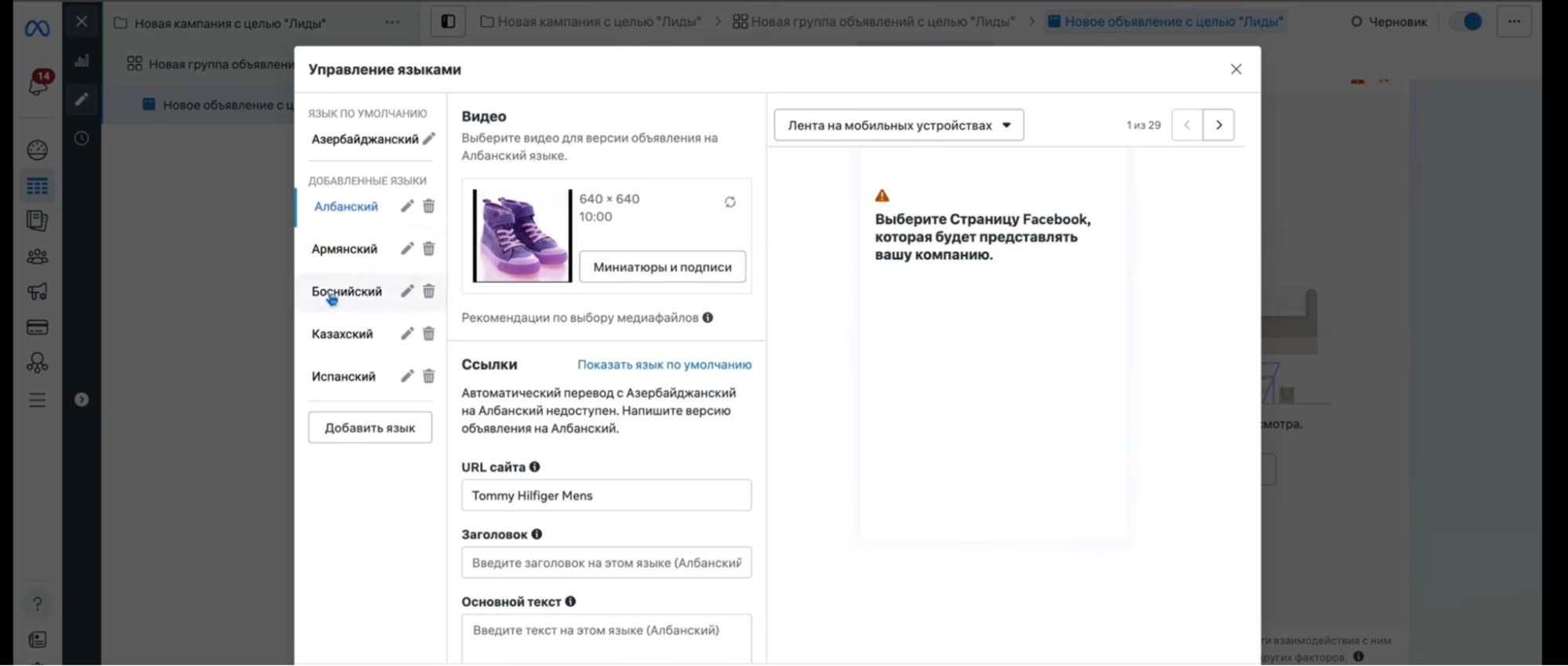
Add the actual language of the required GEO to the additional languages (Spanish in our example). Upload the working creative and offer link here.
During the review, moderation first looks at the default version, sees a link to a trusted marketplace, and approves the campaign. Users in the target country see the working creative in their own language.
Mixing placements
This method is based on the fact that manual placement settings allow you to select individual platforms and upload different creatives for each one.
In the ad set settings, disable automatic placements and switch to manual settings. Upload the working creative to the main placements (Facebook Feed, Instagram, and Stories).
Next, enable 2-3 secondary placements such as Messenger Inbox, search results, or Marketplace.
Using placement editing, replace the images for these additional placements with neutral photos, such as nature or ordinary products.
The anti-fraud system reviews the ad as a whole: it sees several white-hat images together with the target creative and allows the campaign through. At the same time, the secondary placements receive minimal impressions, so almost the entire budget is spent on showing the working creative in the Feed and Stories.
Bypassing through «Carousel»
This option is suitable for launching static images:
-
When creating the ad, select the «Carousel» format.
-
Place the working offer creative on the first card.
-
Upload neutral images with white-hat products to the remaining 3–4 cards.
-
In the settings, be sure to disable the «Automatically show the best-performing cards first» toggle.
If you disable this toggle, users will always see the working offer creative first. At the review stage, the anti-fraud system analyzes the entire carousel and approves the ad thanks to the neutral cards on the following slides.
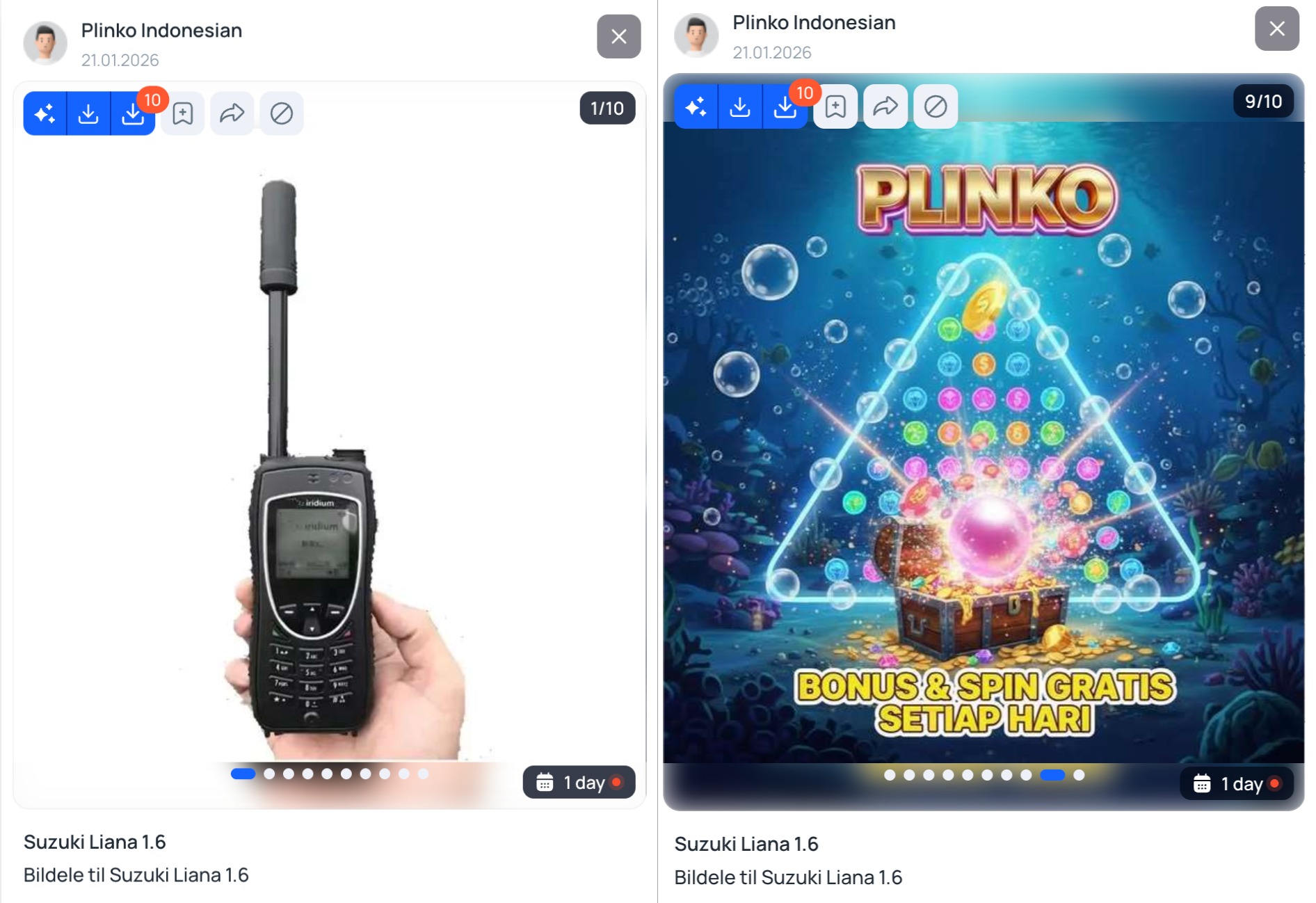
Dynamic creatives
Enable dynamic creatives in the ad set settings (or the Flexible format at the ad level).
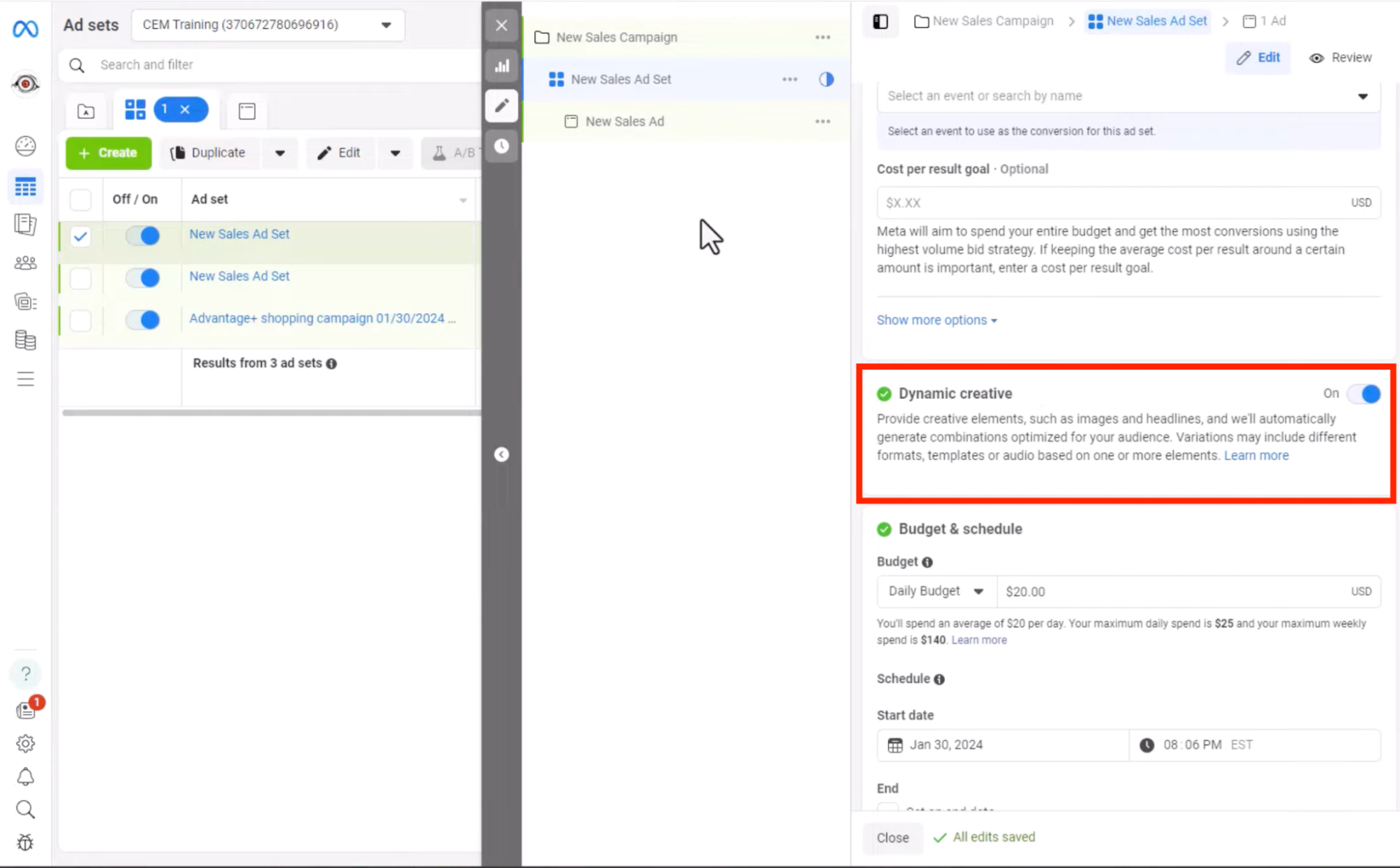
Upload 4 neutral images and 1 working gray-hat creative to one ad.
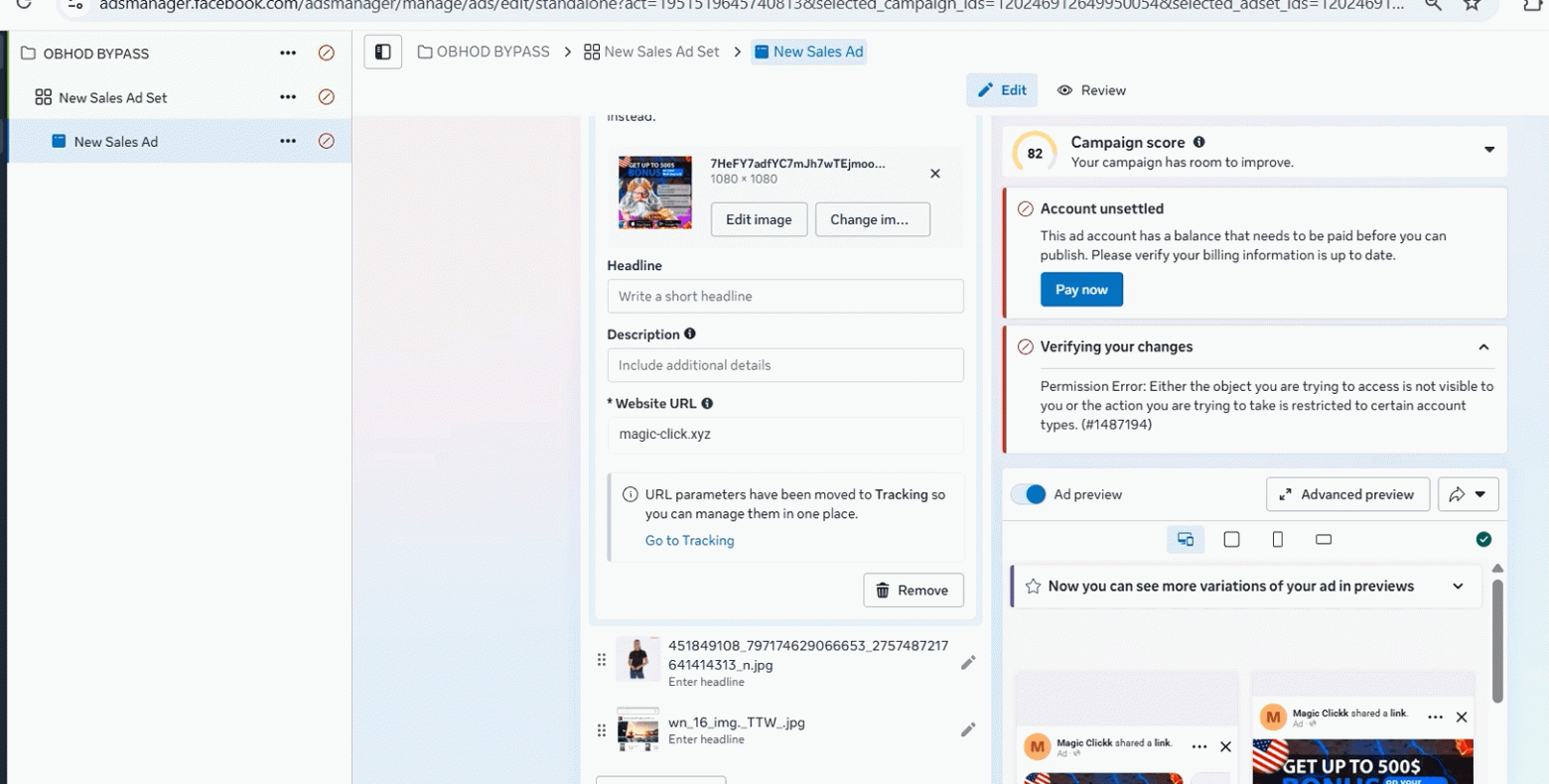
At the review stage, moderation sees the safe creatives and allows the campaign through. Once delivery begins, users start clicking the working offer creative more often.
Because of its high CTR, the algorithm gives it almost all the impressions, while the neutral images receive virtually no reach and do not waste the budget.
Scaling via Post ID
If a creative has already passed moderation on one account and is generating leads, there is no need to download it again and upload it as a new file to another Ads Manager. When reuploaded, the file will go through moderation again and may be rejected.
Post ID is used to transfer the combo to other Ads Managers:
-
Copy the unique post ID from the working ad on the Fan Page.
-
When creating an ad in the new Ads Manager, select «Use Existing Post».
-
Paste the post ID.
The ad is imported together with all its likes and comments. Since this post is already in the database of approved posts, the anti-fraud system allows it through in the new Ads Manager without another review.
Special Ad Categories
When launching ads for crypto, money-making schemes, or investments, Facebook often rejects ads under «Financial Products and Services».
To avoid automatic rejections, enable the «Special Ad Categories» toggle at the campaign level and select «Financial Products and Services».
In this mode, you cannot configure detailed interest targeting or set the minimum age below 18, but the anti-fraud system stops issuing rejections for mentions of income and investments in the text and creative itself.
How to reset rejections and push ads through in Ads Manager
If an ad is rejected or stuck in review, do not rush to delete and reupload it. In Ads Manager, you can force the campaign to be reviewed again or reduce the risk of rejection during publication.
Scheduled publication
When you click «Publish» immediately, the ad is reviewed in an accelerated mode, and bots are more likely to flag questionable elements. To reduce the risk of rejection, the launch is scheduled several hours in advance.
Procedure:
-
At the ad set level, set the launch time in the schedule 3-4 hours ahead (for example, in the evening or the following morning).
-
At the ad level, disable the delivery toggle (switch it to Off).
-
Publish the campaign while it is switched off.
-
Wait until the Ads Manager displays a successful review status, then switch the toggle back on.
Resetting a rejection through the «Branding» toggle
This method helps send an ad for another moderation review without creating duplicates or editing the creative itself. The trick works with both rejections and ads that have been stuck in review for a long time.
Procedure:
-
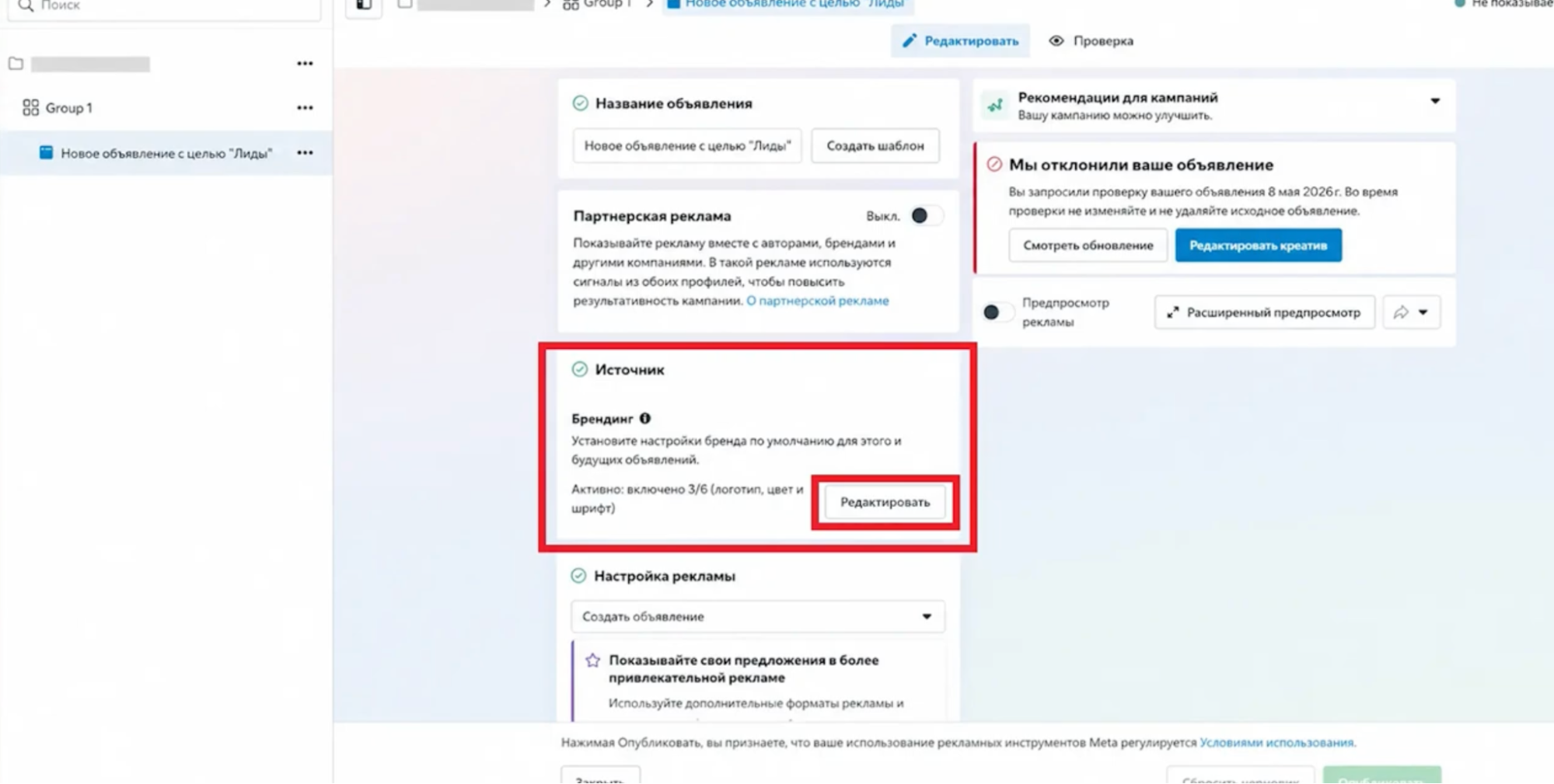
Open the rejected ad by clicking «Edit».
-
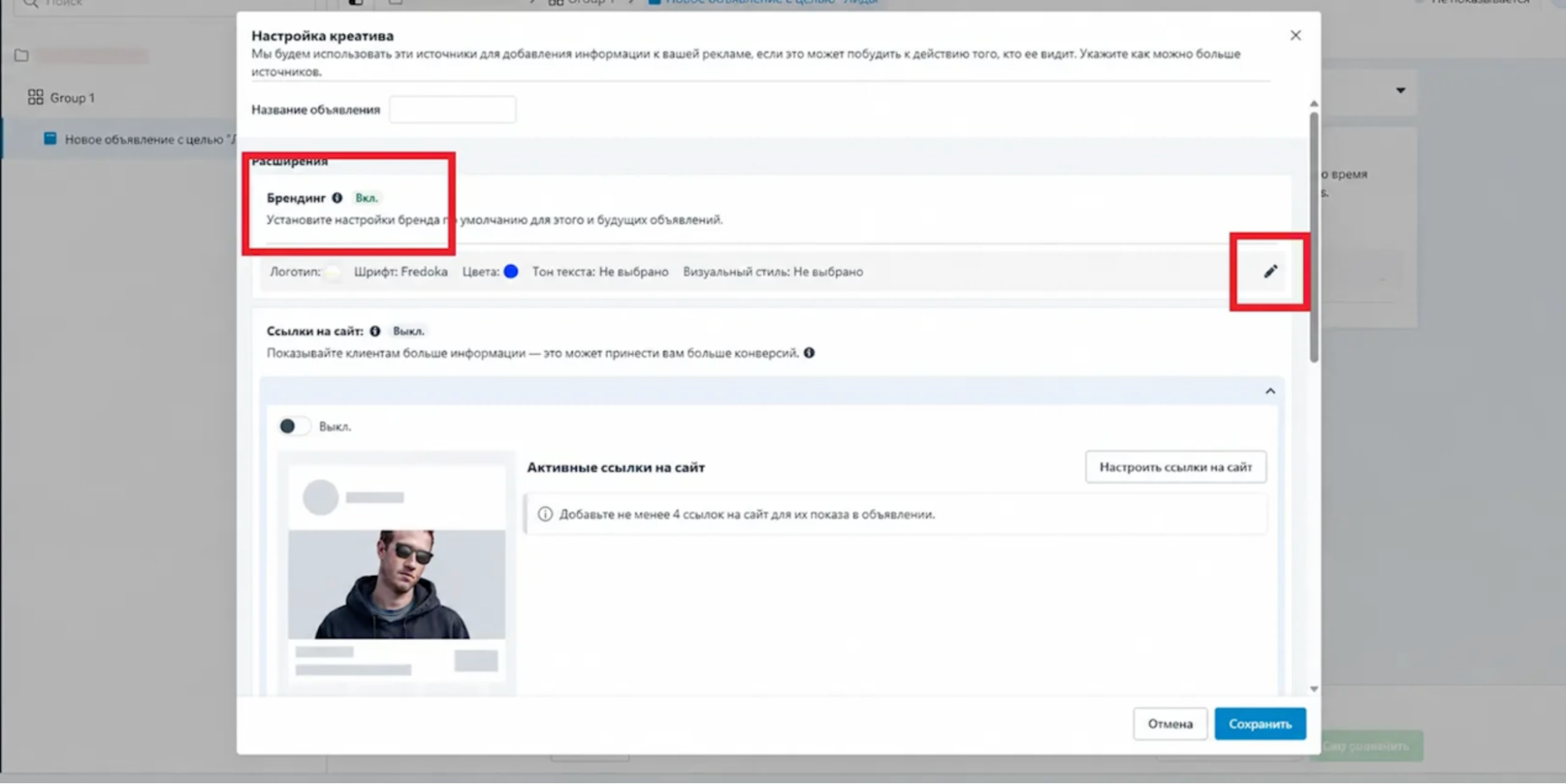
Find the «Branding» section and click the pencil icon.
-
Switch the «Apply Branding» toggle (if it was enabled — disable it; if it was disabled — enable it).
-
Save the changes.
After that, Facebook sends the ad for review again, and it usually gets approved.
If your Ads Manager does not have a «Branding» section, enable the Advantage+ automatic enhancements section at the creative level — this setting is hidden in the interface without them.
Appealing through Request Review
If a creative is rejected, you can request an official re-review from support instead of deleting it.
Procedure:
-
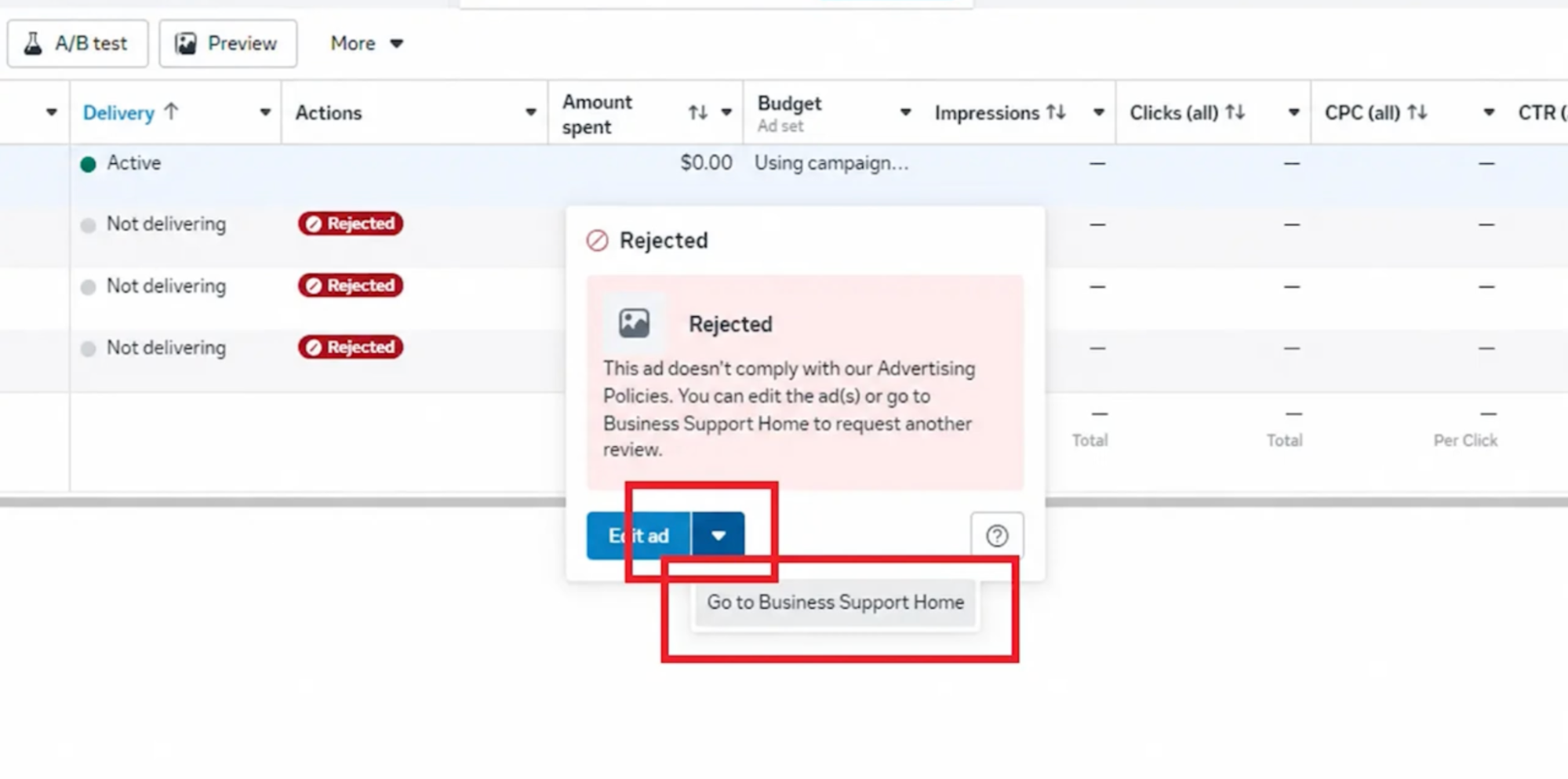
In Ads Manager, click the error status on the rejected ad and go to «Business Support Home».
-
Find the «Request Review» button.
-
Write a short message asking them to review the ad again. It is better to send the message in English: support processes such tickets faster.
A response usually arrives within a couple of hours. If the creative did not contain any serious violations, the ad is approved and starts running.
Finding triggers: how to identify the reason an ad was rejected
When a video is consistently rejected, recreating the entire video from scratch takes a long time and is not always necessary. The rejection may be caused by a specific phrase in the voice-over, text on the screen, or a particular frame. To understand exactly what moderation is flagging, test the video step by step using the process of elimination.
Disabling audio and removing text. First, you need to check how moderation reacts to the audio and text:
-
Remove all overlays, subtitles, and overlaid text from the video in a video editor.
-
Completely disable the audio track.
-
Upload the resulting video to a test ad.
If the ad passes review, we can conclude that there are no issues with the video footage itself. The problem may be stop words on the screen, phrases in the voice-over, or the music.
In this case, simply replace the audio or rewrite the text in more neutral language. If the video is rejected again without audio or text, the cause must be found in the video itself.
Cutting the video into segments. If the video does not pass moderation even without text and audio, you need to find the problematic moment:
-
Cut the original video into 3-4 short segments of 3-5 seconds each.
-
Upload each segment to a separate test ad.
If some segments pass moderation without any issues while one is rejected, we can conclude that the anti-fraud system is reacting specifically to that particular fragment.
Reducing the display time of questionable frames. If you manage to find the problematic segment, you do not necessarily need to remove it from the creative completely.
For example, gambling and money-making schemes often use approaches involving news reports and well-known presenters. If you leave a long segment featuring the presenter, moderation is highly likely to reject the ad.
However, if you shorten this fragment to a few seconds and add a quick transition, the viewer will still understand the intended context, while the ad will be much more likely to pass moderation.
Conclusion
Facebook rejections are a normal part of running ads in gray-hat verticals. Most rejections can be bypassed using standard Ads Manager settings: separate creatives by language, mix placements, or send the ad for another review through the Branding toggle.
If an ad does not pass moderation, you do not always need to recreate the creative from scratch. First, try to identify exactly what triggers moderation: remove the audio or text, or cut the video into short segments. This approach saves the testing budget and helps launch combos without constant bans.